VS Code Debugger
Debugger configurations for Visual Studio Code
The launch.json file defines debug configurations for Visual Studio Code. This page includes examples demonstrating common launch.json setups.
Visual Studio Code Documentation
Procedure
- Open the workspace directory in VS Code.
- In the workspace root, create a
.vscodedirectory if it does not already exist. - Inside
.vscode, create a file namedlaunch.json.
Python Example
Example Python Program
#_______________________________________________________________
# This file is named arg_test.py
#_______________________________________________________________
import argparse

if __name__ == '__main__':
  parser: argparse.ArgumentParser = argparse.ArgumentParser()
  parser.add_argument('--in0', '-i0', help='Input 0', action='store')
  parser.add_argument('--in1', '-i1', help='Input 1', action='store')
  args: argparse.Namespace = parser.parse_args()

  print(str(
    f'\nInput argument 0: {args.in0}'
    f'\nInput argument 1: {args.in1}'
    )
  )
Sample launch.json
This launch.json file contains two Python debug configurations with alternative inputs.
{ "version":        "0.2.0"

, "configurations":
  [ { "name"    : "sample py debug"
    , "type"    : "debugpy"
    , "request" : "launch"
    , "program" : "${workspaceFolder}/arg_test.py"
    , "console" : "integratedTerminal"
    , "args"    :
      [ "--in0", "42"
      , "-i1"  , "3.14"
      ]
    }

  , { "name"    : "alternate input sample py"
    , "type"    : "debugpy"
    , "request" : "launch"
    , "program" : "${workspaceFolder}/arg_test.py"
    , "console" : "integratedTerminal"
    , "args"    :
      [ "--in0", "64"
      , "--in1", "4096"
      ]
    }
  ]
}
Key Descriptions
| Key | Description |
|---|---|
name |
Name of configuration. |
type |
Type of debugger. Common values are debugpy for python, gdb for cpp. |
request |
Specifies what kind of debugging action VS Code should perform. launch = Start a new programattach = Attach debugger to a program that is already running. |
program |
Path to program to execute. |
console |
Use integratedTerminal to use the VS Code terminal for program execution. |
args |
Arguments passed to the program. |
Run Debug Configuration
Select the icon for
Run and Debugfrom the activity bar. Click the drop down menu and select a configuration inlaunch.json.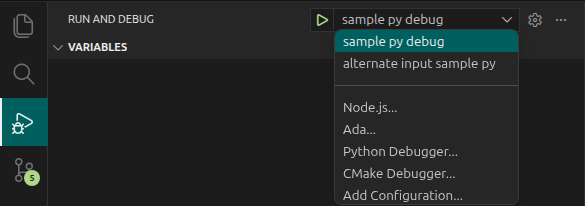
Click the triangle (▷) play symbol to run the debug configuration.
C++ Example
Notes
- Debugging a C++ program requires debug symbols. When using
g++, enable them with the-gcommand-line option. - You can create a VS Code task to build the C++ program using debug symbols.
Example C++ Program
#include <cstdio>
#include <cstdlib>

int main(int argc, char* argv[])
{
  int i = -1;

  // Convert command line input C-style string (e.g. char*) to integer
  if (argc > 1)
  {
    i = std::atoi(argv[1]);
  }

  printf(
    "\n\nHello there :)"
    "\n\nInput argument: %d"
    "\n\n"
    , i
  );

  return 0;
}
Sample launch.json C++ Configuration
{ "version": "0.2.0"
, "configurations":
  [ { "name"            : "hello-cpp-debug"
    , "type"            : "cppdbg"
    , "request"         : "launch"
    , "cwd"             : "${workspaceFolder}"
    , "program"         : "${workspaceFolder}/hello/hello.out"
    , "args"            : ["42"]
    , "stopAtEntry"     : true
    , "externalConsole" : false
    }
  ]
}
Key Descriptions
| Key | Description |
|---|---|
name |
Name of configuration. |
type |
Type of debugger. Common value for C++ is “cppdbg” |
request |
Specifies what kind of debugging action VS Code should perform. launch = Start a new programattach = Attach debugger to a program that is already running. |
cwd |
Defines the working directory used when running the command. |
program |
Path to program to execute. |
args |
Arguments passed to the program. |
stopAtEntry |
Sets a breakpoint at program entry. |
externalConsole |
Use integratedTerminal to use the VS Code terminal for program execution. |
Sample tasks.json C++ Debug Build
The following tasks.json example defines a VS Code task that builds a C++ program with debug symbols using the -g option of g++.
{ "version": "2.0.0"
, "tasks":
  [
    { "label"   : "compile-hello-debug"
    , "type"    : "shell"
    , "command" : "g++"
    , "args"    :
      [ "${workspaceFolder}/hello/hello.cpp"
      , "-g"
      , "-o"
      , "${workspaceFolder}/hello/hello.out"
      ]

      // Close task terminal after execution
    , "presentation"  :
      { "close": true
      }

      // Disable error detection for task
    , "problemMatcher": []
    }
  ]
}