Font Install
Sometimes if you open a file that was created on another machine, the font might not show up correctly. This page describes how to install a font on your machine.
In the image displayed below, the font Lucida Console, a monospace font*, should be used for all text in the image, however, the font is showing up incorrectly. This is because the font is not installed properly on the machine I am currently working on.
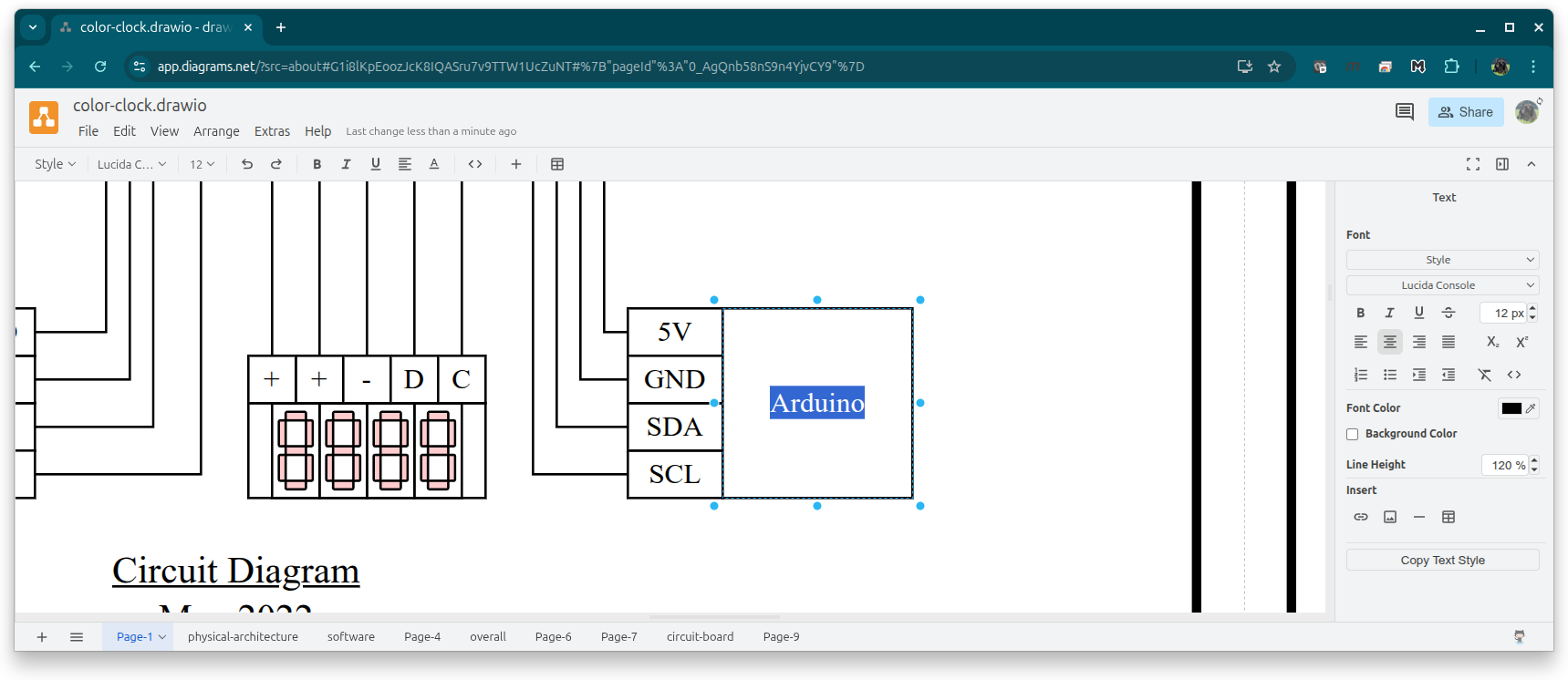
* A monospace font is one in which each character has the same width. It is often used for displaying code.
Linux
View Installed Fonts
To view installed fonts, run the following command.
fc-listExample Output
/usr/share/fonts/truetype/lato/Lato-Medium.ttf: Lato,Lato Medium:style=Medium,Regular
/usr/share/fonts/truetype/msttcorefonts/comicbd.ttf: Comic Sans MS:style=Bold,Negreta,tučné,fed,Fett,Έντονα,Negrita,Lihavoitu,Gras,Félkövér,Grassetto,Vet,Halvfet,Pogrubiony,Negrito,Полужирный,Fet,Kalın,Krepko,Lodia
/usr/share/fonts/truetype/tuffy/tuffy_bold.ttf: Tuffy:style=Bold
/usr/share/fonts/truetype/lato/Lato-SemiboldItalic.ttf: Lato,Lato Semibold:style=Semibold Italic,Italic
...
Font Search
To search for a specific font in your installed fonts run the following command.
# The argument i is used to ignore case
fc-list | grep -i 'font-name'
If the font is installed, grep will return matching results. If the font is not installed, the fc-list | grep command will produce no output.
Example
> fc-list | grep -i 'lucida console'
/usr/share/fonts/LucidaConsoleW1GVF.ttf: Lucida Console W1G VF:style=Regular
/usr/share/fonts/LucidaConsoleW1GVF.ttf: Lucida Console W1G VF:style=Semi Bold
/usr/share/fonts/LucidaConsoleW1GVF.ttf: Lucida Console W1G VF
/usr/share/fonts/LucidaConsoleW1GVF.ttf: Lucida Console W1G VF:style=Medium
/usr/share/fonts/LucidaConsoleW1GVF.ttf: Lucida Console W1G VF:style=Bold
* Note that the name for Lucida Console on this machine is specifically named Lucida Console W1G VF.
Install Font
Download the font file. If the download is compressed, extract the file. Save the
.ttfin/usr/share/fonts.You will likely need to use
sudoto save in this directory.To install for all users, run the following command.
sudo fc-cache -v
draw.io
In this example, the font Lucida Console* installed on the machine, but draw.io, a web-based app, is not displaying the font correctly.
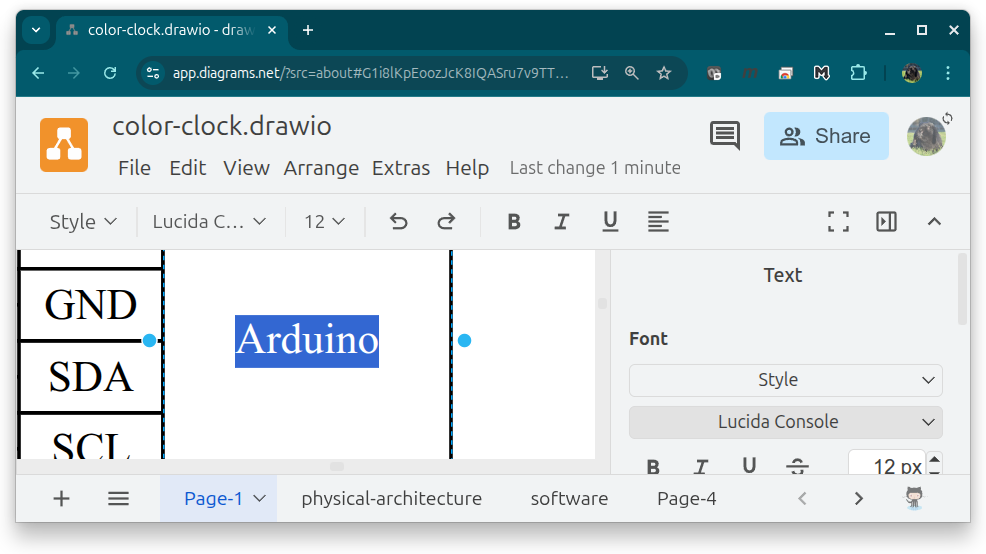
* Note that the name for Lucida Console on this machine is specifically named Lucida Console W1G VF.
Configure draw.io For System Fonts
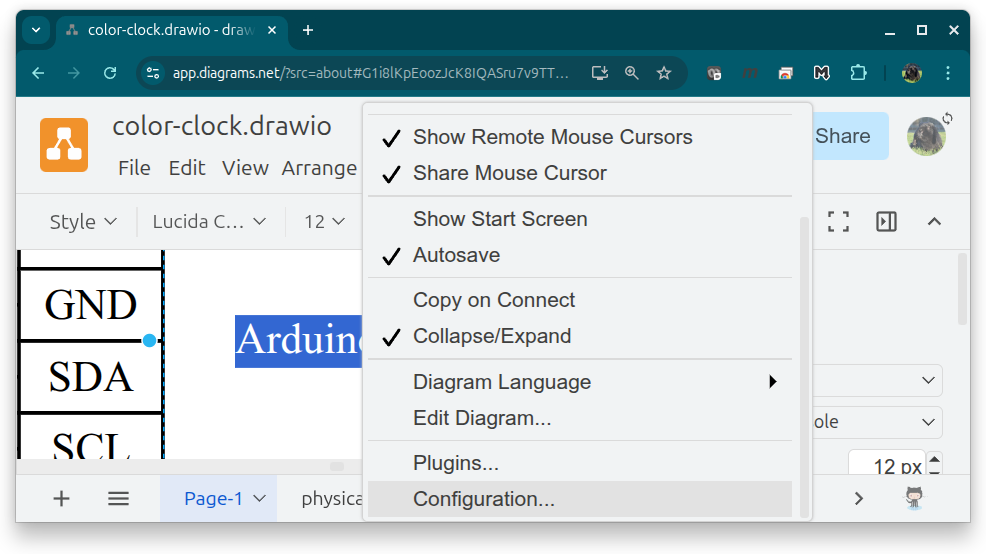
In draw.io go to Extras > Configuration. Select the JSON tab and enter the following:
{
  "customFonts": [
    "Correctly Named Font"
  ]
}
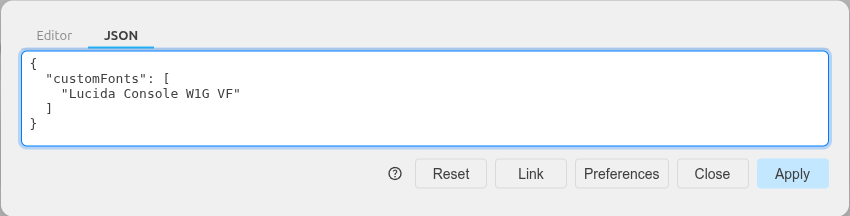
Example
In this example, the font that was installed was named Lucida Console W1G VF, not simply Lucida Console which is what is used throughout the drawing.
Change the text in the drawing to the installed font - in this example,
Lucida Console W1G VF. You might need to selectCustom...and enter the font manually.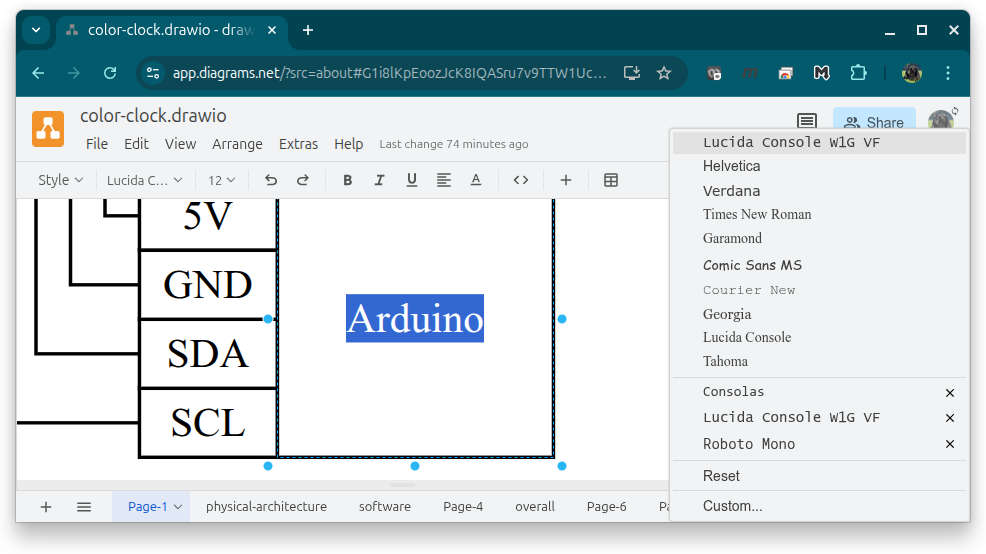
The text
Arduinonow displays the correct font. However, the rest of the text in the drawing is still set toLucida Consoleinstead of the installed font nameLucida Console W1G VF.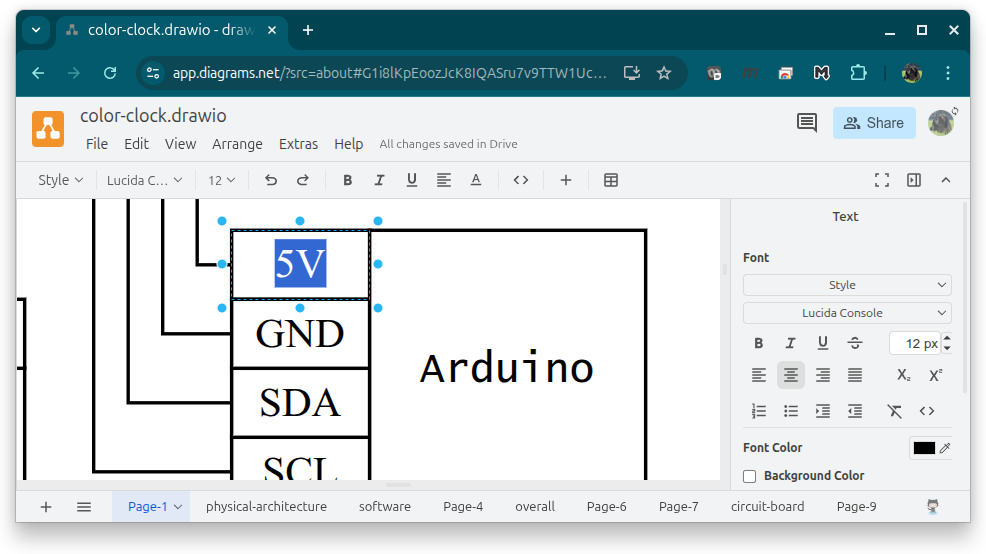
To avoid reassigning every text object with the new font name, create a font alias.
Restart the browser so draw.io detects the new font alias.
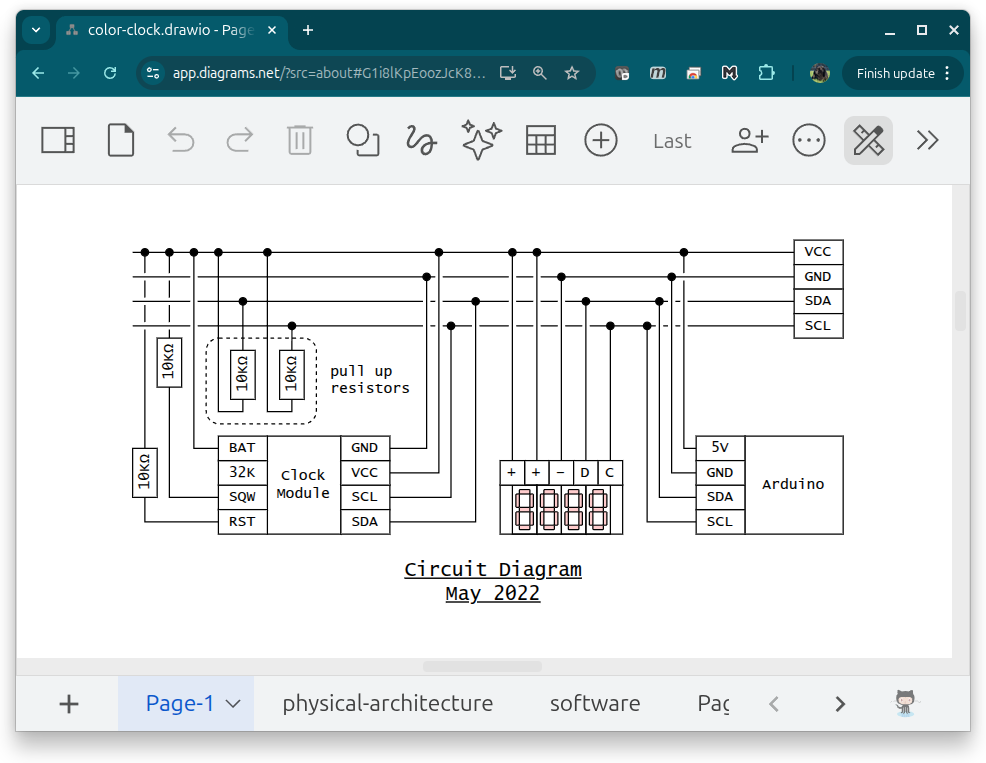
Create Font Alias
This configuration allows applications to reference an installed font using an alternate family name. In this example, the name Lucida Console is mapped to the installed font family Lucida Console W1G VF.
Edit or create the file
~/.config/fontconfig/fonts.confto include the following text:<?xml version="1.0"?> <!DOCTYPE fontconfig SYSTEM "fonts.dtd"> <fontconfig> <alias> <family>Lucida Console</family> <prefer> <family>Lucida Console W1G VF</family> </prefer> </alias> </fontconfig>Rebuild the font cache with the following command.
fc-cache -vVerify the alias resolves.
Command
fc-match "Lucida Console"Output
LucidaConsoleW1GVF.ttf: "Lucida Console W1G VF" "Regular"