Enable SSH
This page describes how to enable ssh on a computer.
SSH allows you to access another computer from the command line. It lets you run commands on a remote system and transfer files between machines.
To accept incoming connections, the SSH server must be enabled on the target computer. This page describes how to enable the SSH server on Linux and macOS systems.
Linux
Reference
sudo systemctl  enable --now ssh    # Enable ssh
sudo systemctl disable --now ssh    # Disable ssh
ifconfig                            # Network interface configuration utility
Enable SSH Procedure
Install
openssh-server.sudo apt update sudo apt install openssh-serverCheck if ssh is enabled. In this example, ssh is disabled
> systemctl status ssh

○ ssh.service - OpenBSD Secure Shell server
     Loaded: loaded (/usr/lib/systemd/system/ssh.service; disabled; preset: enabled)
     Active: inactive (dead)
TriggeredBy: ● ssh.socket
       Docs: man:sshd(8)
             man:sshd_config(5)
Enable ssh
> sudo systemctl enable --now ssh

Synchronizing state of ssh.service with SysV service script with /usr/lib/systemd/systemd-sysv-install.
Executing: /usr/lib/systemd/systemd-sysv-install enable ssh
Created symlink /etc/systemd/system/sshd.service → /usr/lib/systemd/system/ssh.service.
Created symlink /etc/systemd/system/multi-user.target.wants/ssh.service → /usr/lib/systemd/system/ssh.service.
MacOS
Open
System Preferencesand selectSharing.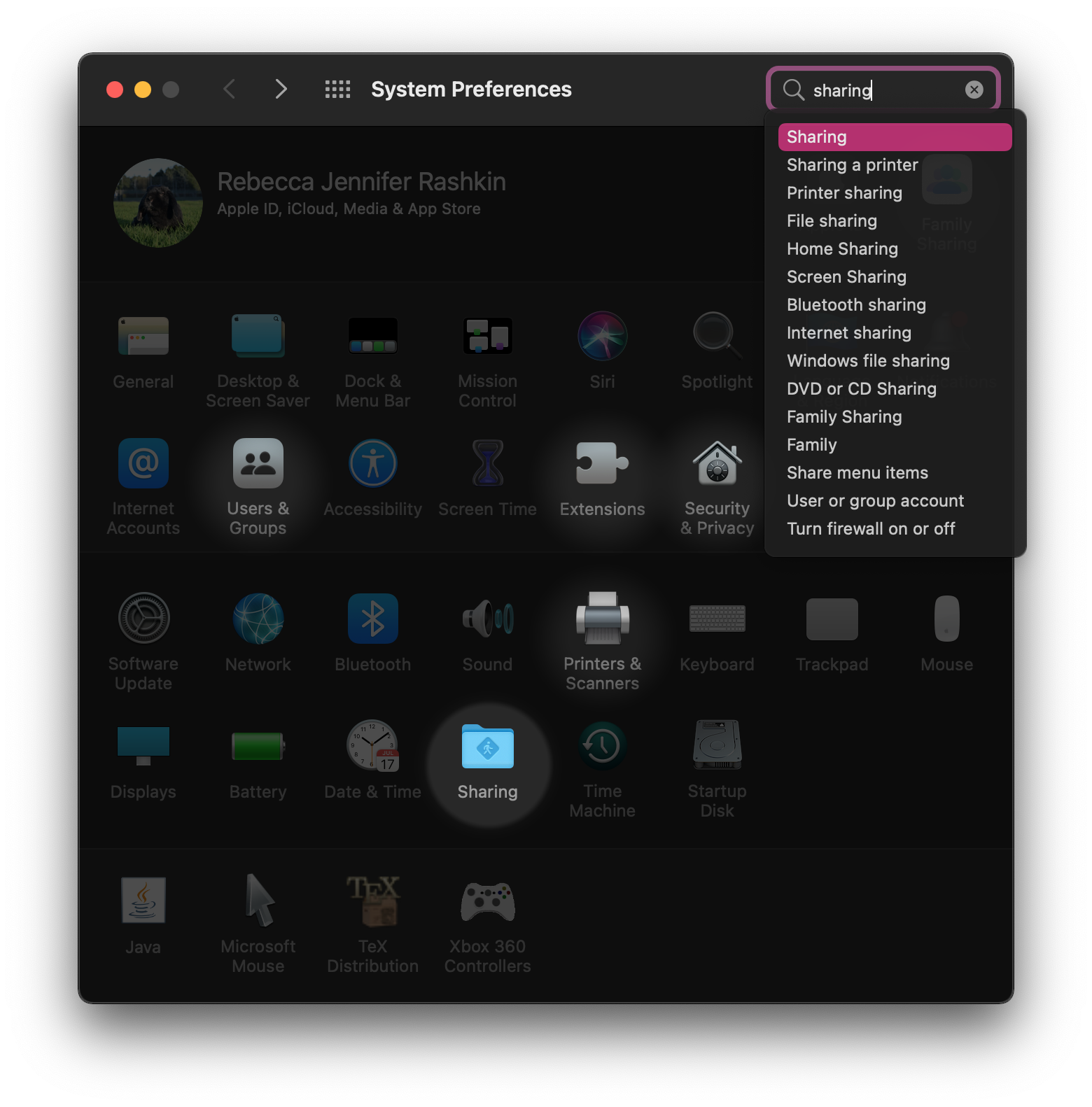
From the sidebar, select
Remote Login.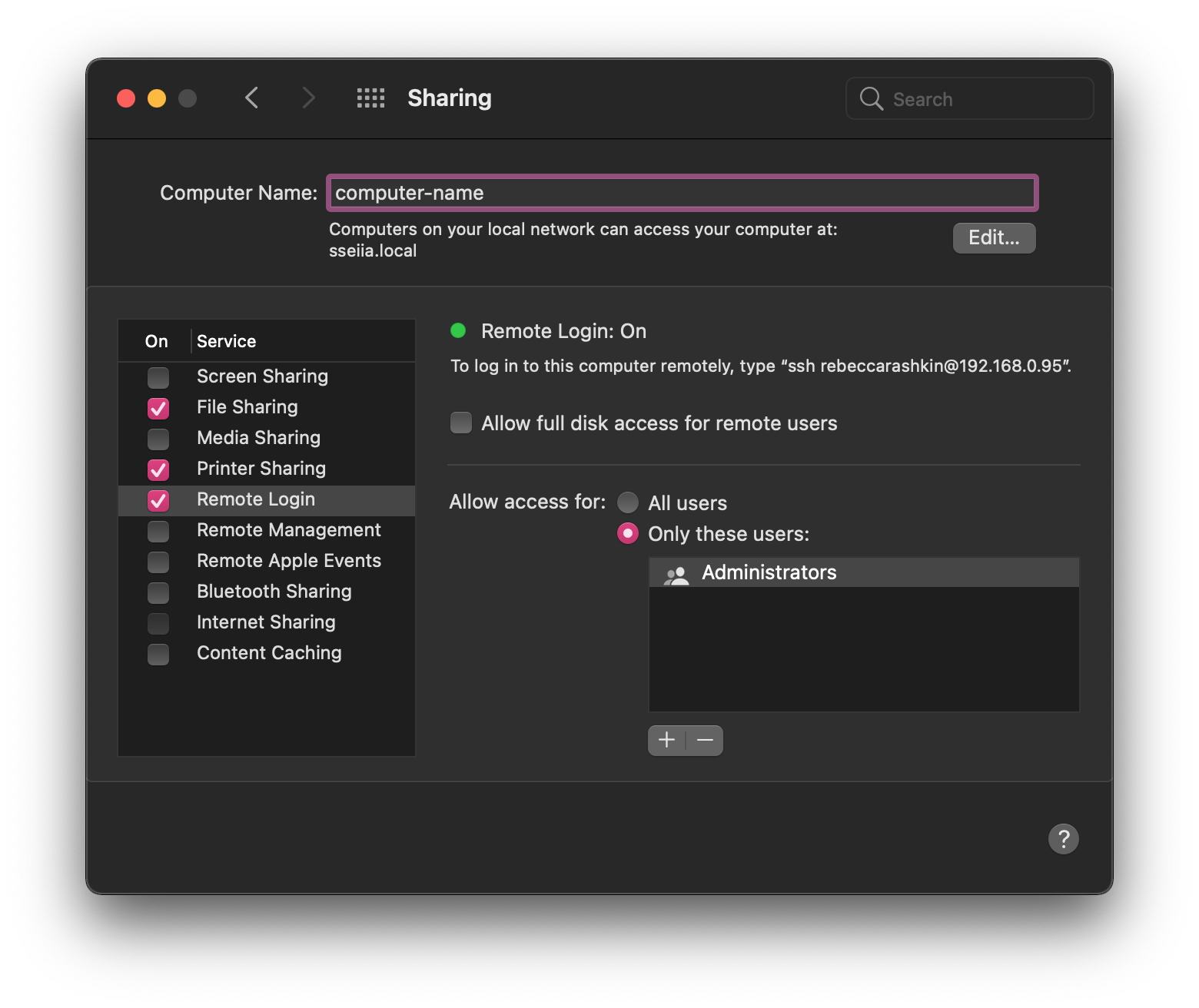
Test Connection
In this example, the local machine will be my Macbook, and the remote machine will be the Linux host.
On the remote machine, run
ifconfigto check its IP address. It will likely be in the form192.168.0.##.This computer is connected to the network using WiFi, so the key in ifconfig is labeled
wlo1.> ifconfig ... wlo1: flags=4163<UP,BROADCAST,RUNNING,MULTICAST> mtu 1500 inet 192.168.0.## netmask 255.255.255.0 broadcast 192.168.0.255 ...From the local machine, run
ping. If the remote computer is reachable on the network, the terminal will display periodic replies indicating that the connection is active.> ping 192.168.0.## PING 192.168.0.## (192.168.0.##): 56 data bytes 64 bytes from 192.168.0.##: icmp_seq=0 ttl=64 time=0.068 ms 64 bytes from 192.168.0.##: icmp_seq=1 ttl=64 time=0.100 ms 64 bytes from 192.168.0.##: icmp_seq=2 ttl=64 time=0.108 msTry to remote in using
ssh. Type in the password for the remote user.Successful Login Example
> ssh <remote-user-name>@192.168.0.##

<remote-user-name>@192.168.0.##'s password:

Welcome to Ubuntu 24.04.4 LTS (GNU/Linux 6.17.0-20-generic x86_64)
 * Documentation:  https://help.ubuntu.com
 * Management:     https://landscape.canonical.com
 * Support:        https://ubuntu.com/pro
Expanded Security Maintenance for Applications is not enabled.
88 updates can be applied immediately.
To see these additional updates run: apt list --upgradable
35 additional security updates can be applied with ESM Apps.
Learn more about enabling ESM Apps service at https://ubuntu.com/esm
Last login: Fri Apr 17 21:24:14 2026 from 192.168.0.95
Unsuccessful Login Example
In this example, SSH access is disabled for the remote host, so the login attempt failed.
> ssh <remote-user-name>@192.168.0.##

ssh: connect to host 192.168.0.## port 22: Connection refused