Convert Bitmap to Vector
This page describes how to convert a bitmap image to a vector image.
Official Docs
Click here for the official Inkscape tutorial on the Trace Bitmap feature.
Steps
Open Inkscape and import your image, either from
File > Import...or drag and drop the image onto the canvas.Press
Sfor the selection tool. Click on the image.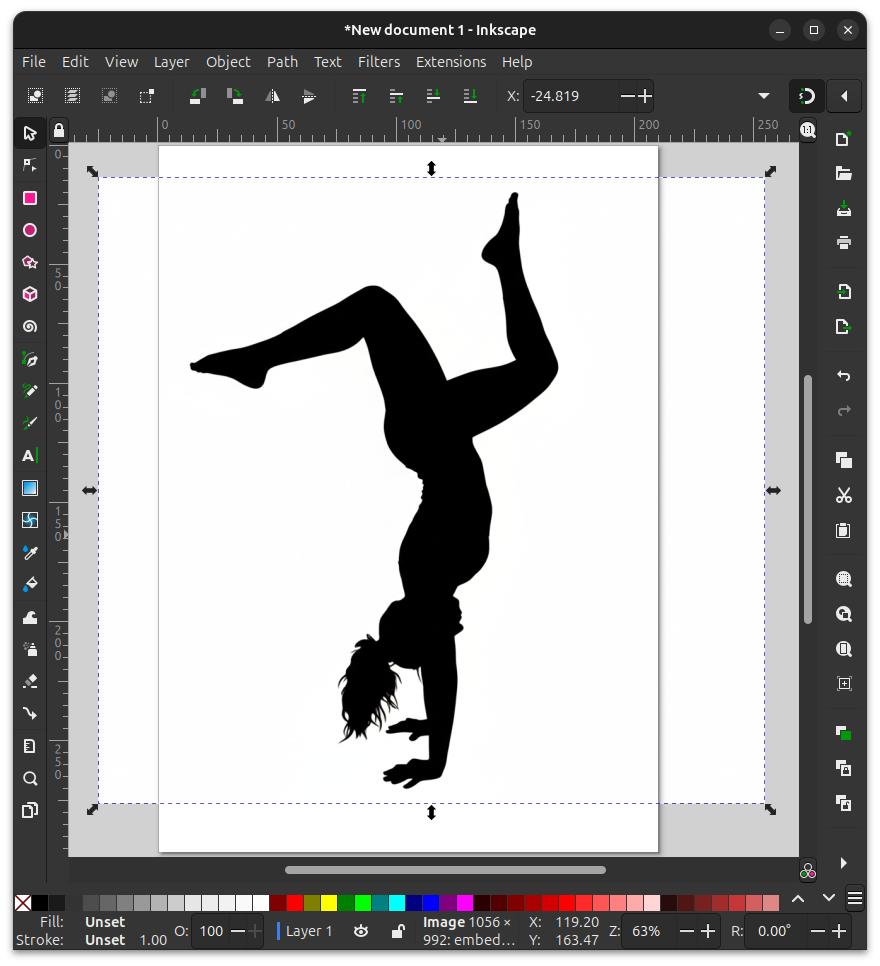
From the top menu, go to
Path > Trace Bitmap...(Shift + Alt + B). Select your options and clickApply.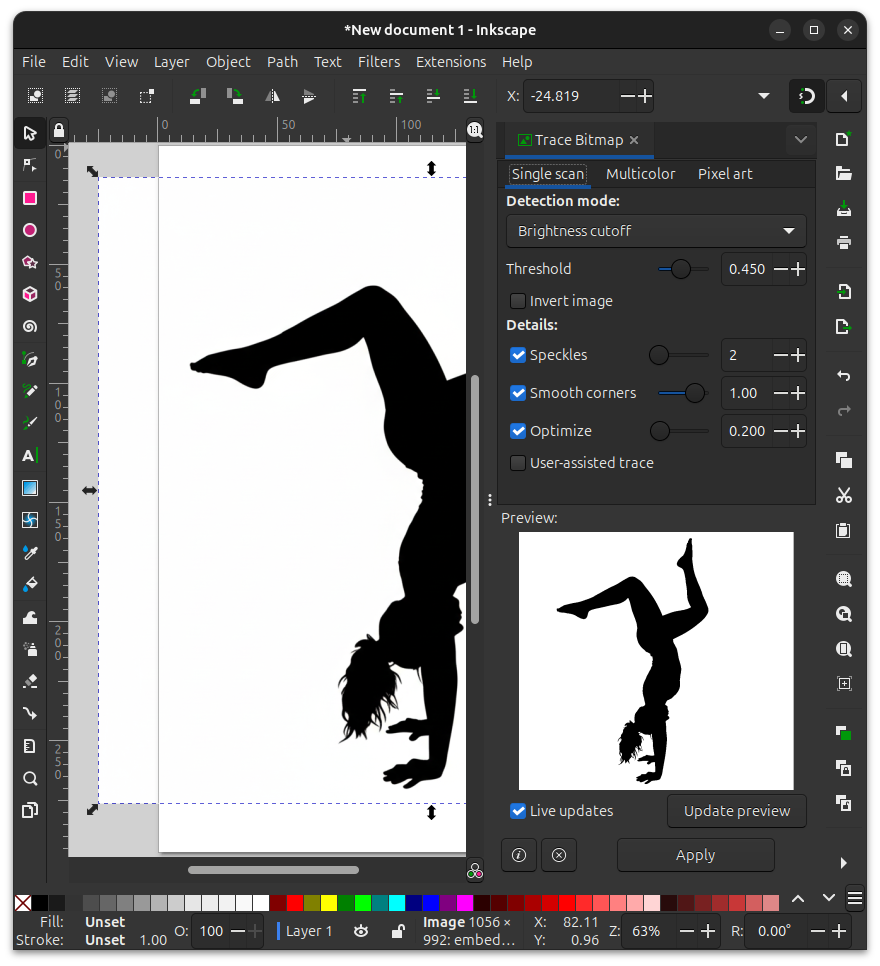
Go to the
Layerspanel withCtrl + Shift + Lor from the top menu navigate toLayer > Layers and Objects....Expand
Layer 1. Click the image object and hit theDeletekey.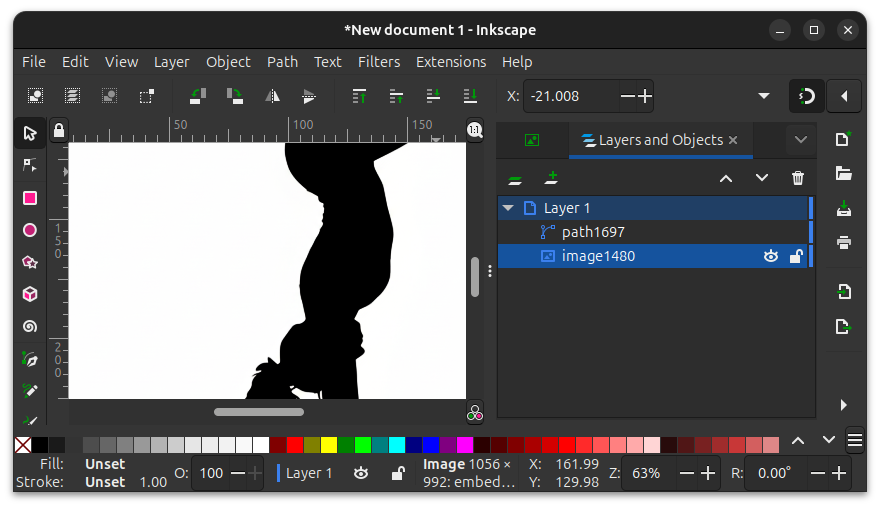
Select the newly created path object to see the nodes.
To change the color, navigate to
Object > Fill and Stroke...(Ctrl + Shift + F) and select your preferred color.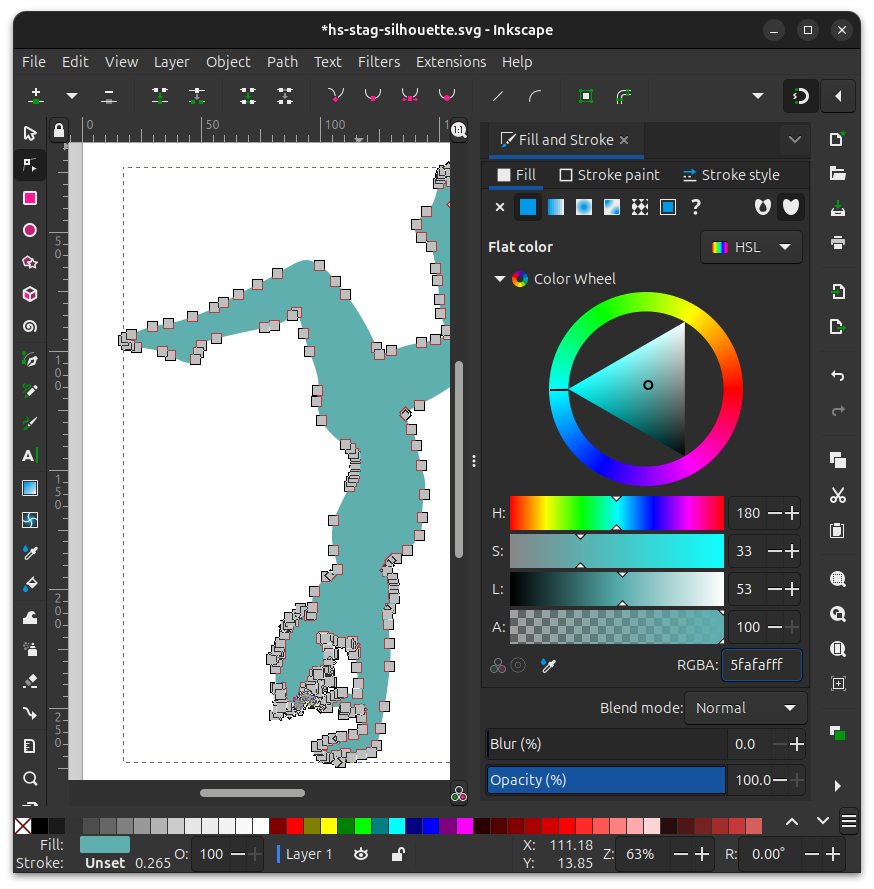
The Vector Image