LS_COLORS & dircolors
Customize file type highlights for the ls command.
The shell environment variable LS_COLORS is used to define the colors displayed when listing file types with the ls command. It is configured via the dircolors command, which typically runs during your shell’s startup.
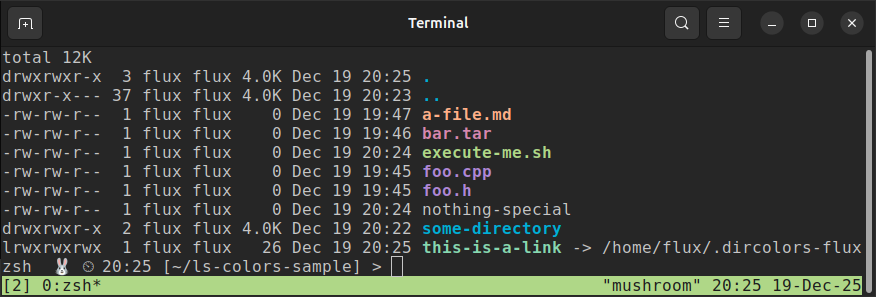
There are two ways to modify the file type display colors, i.e. the LS_COLORS environment variable:
- Execute
dircolorsusing a file that sets the colors. - Edit
LS_COLORSdirectly.
Set LS_COLORS with dircolors
This section explains how to set file type colors using the dircolors command.
TL;DR
Save a
.dircolorsfile with your preferred coloring per file type.Insert the following commands in your
.bashrcor.bash_profile:eval `dircolors -b path/to/your/.dircolors/file` alias ls='ls --color=auto'
Sample .dircolors File
For reference, here is my .dircolors file.
Default dircolors
You can see the default file type colors by executing the following command.
dircolors -pSummarized output:
# Configuration file for dircolors, a utility to help you set the
# LS_COLORS environment variable used by GNU ls with the --color option.
...
#.cmd 01;32 # executables (bright green)
#.exe 01;32
#.com 01;32
#.btm 01;32
#.bat 01;32
...
Change LS_COLORS Using dircolors
Save the output of
dircolors -pto a file. In this example we are naming the file.dircolors-mod, but you can name your file whatever you’d like.dircolors -p > ~/.dircolors-modEdit
.dircolors-modusing a preferred text editor.gedit ~/.dircolors-modExecute
# This syntax works using bash and zsh
eval `dircolors -b ~/.dircolors-mod`
Test dircolors Output
Any modifications made to .dircolors-mod will be reflected in LS_COLORS. To test:
Add the following text to the end of
.dircolors-mod.randomfiletype 01;35Execute
eval `dircolors -b ~/.dircolors-mod`Print
LS_COLORSto the screen.echo $LS_COLORSSummarized sample output:
s=0:di=01;34:ln=01;36:mh=00:pi=40;33
...
*.randomfiletype=01;35:
Notice that the value
*.randomfiletype=01;35is now shown at the end of theLS_COLORSprintout.Save a file with the name
.randomfiletypeand run the command# Use the -la to display hidden files ls -la --color=autoThe file named
.randomfiletypeshould be displayed in the color magenta, or whatever you have ANSI color 5 set to. See this page for more information about ANSI color codes.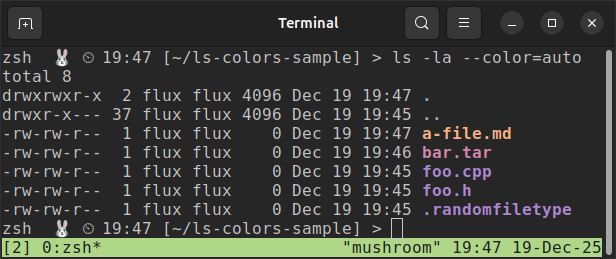
Set LS_COLORS Directly
Set the environment variable LS_COLORS using the following format:
export LS_COLORS="*.ext0=<attr>;<color>:*.ext1=<attr>;<color>"Where
<attr>    : Attribute code, listed below
<color>   : Color code, listed below
ext0, ext1: File extensions
Note that the color codes correspond with the ANSI 16 color codes as described here.
Add to .bashrc or .bash_profile
Once you decide which file types to color, you can save your definition of LS_COLORS to your .bashrc or .bash_profile.
Note: If you are running zsh as your environment, make sure you are not overwriting theses colors in your .zshrc or theme file.
Attribute Codes
| Code | Attribute |
|---|---|
00 |
none |
01 |
bold |
04 |
underscore |
05 |
blink |
07 |
reverse |
08 |
concealed |
Foreground Text Color Codes
| Code | Color |
|---|---|
30 |
black |
31 |
red |
32 |
green |
33 |
yellow |
34 |
blue |
35 |
magenta |
36 |
cyan |
37 |
white |
Background Color Codes
| Code | Color |
|---|---|
40 |
black |
41 |
red |
42 |
green |
43 |
yellow |
44 |
blue |
45 |
magenta |
46 |
cyan |
47 |
white |
tmux Caveat
tmux is a terminal multiplexer that allows you to create and manage multiple panes within a single window. It’s a neat way to streamline your workflow.
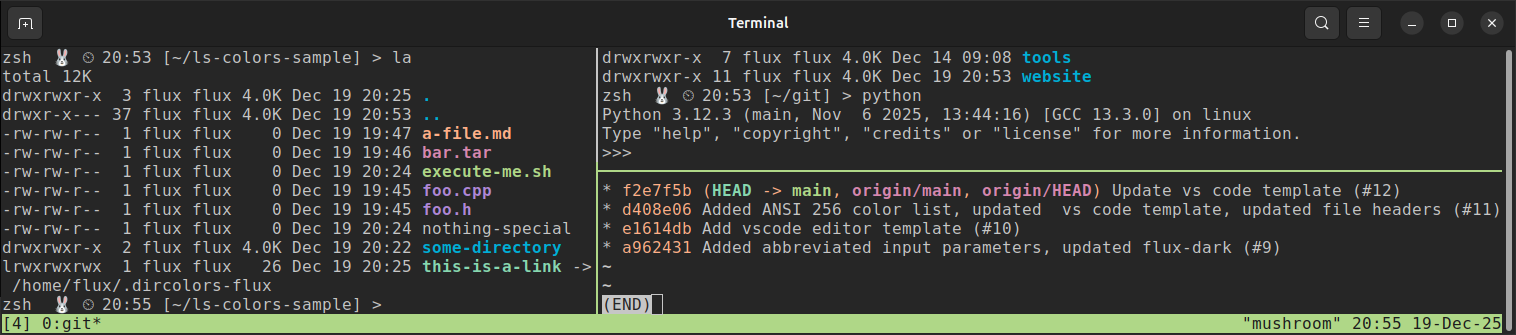
Using tmux can affect your environment, particularly how colors are displayed. You may need to set the TERM environment variable explicitly to ensure colors render correctly. See this page for more information.