VS Code Color Theme
How to create a VS Code color theme file.
A detailed example on how to create and load a VS Code color theme file
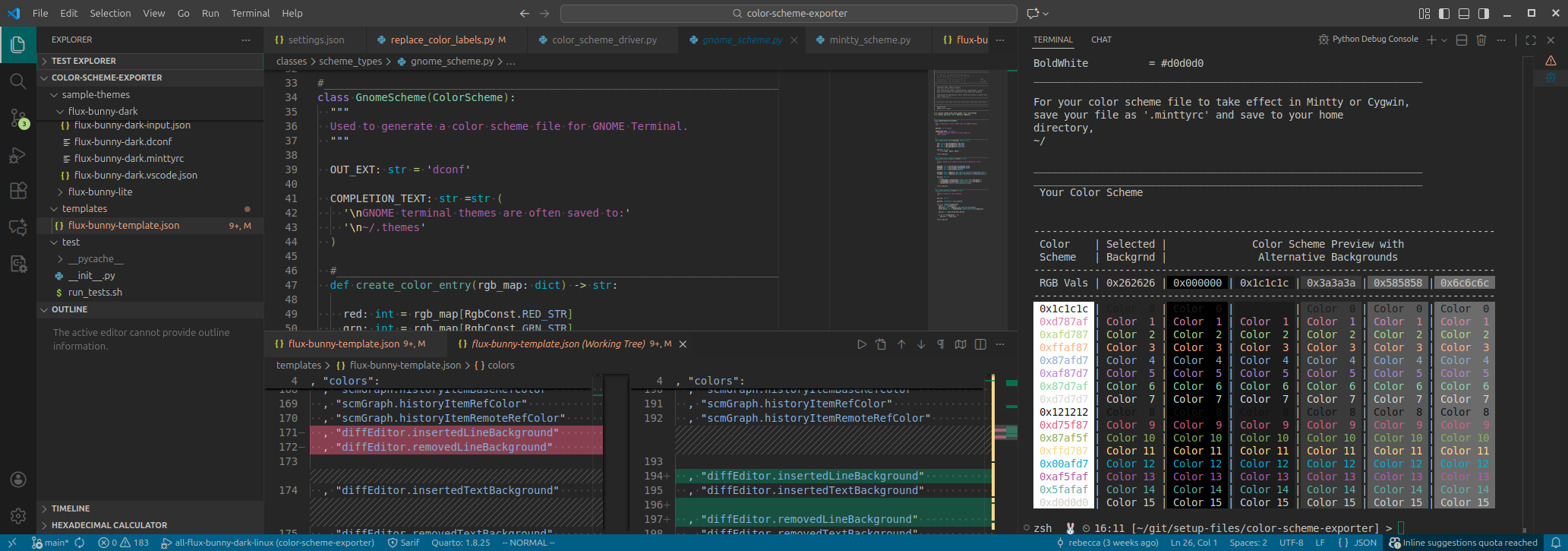
See this page for a complete list of VS Code color theme properties.
See this link for a copy of my personally designed dark and light themes.
Custom Theme Tutorial
File Location
To install a custom theme, create a new directory in the following location (on a Linux system):
~/.vscode/extensions/This example uses the directory named
my-color-themes; you can name this directory whatever you would like.mkdir ~/.vscode/extensions/my-color-themesIn
my-color-themescreate a file namedpackage.json.# The touch command creates a blank file touch ~/.vscode/extensions/my-color-themes/package.jsonEdit
package.jsonto include this minimal information.In this example, we are assuming there to be two theme files,
my-dark-theme.jsonandmy-light-theme.json. The"label"property will be displayed in the color theme drop down menu in VS Code.{ "name" : "my-theme-pack" , "displayName" : "My Theme Pack" , "publisher" : "Your Name" , "version" : "0.0.1" , "engines" : { "vscode": "*" } , "contributes" : { "themes" : [ { "label" : "My Dark theme" , "uiTheme" : "vs-dark" , "path" : "./my-dark-theme.json" } , { "label" : "My Light Theme" , "uiTheme" : "vs" , "path" : "./my-light-theme.json" } ] } }In
~/.vscode/extensions/my-color-themesinclude the files formy-dark-theme.jsonandmy-light-theme.json.
Note: For the uiTheme property in package.json, use vs-dark for a dark theme and vs for a light theme. This ensures that any undefined properties inherit the correct default colors. In the My Dark Theme example, vs was intentionally selected instead of vs-dark; consequently, only the defined elements appear dark, while the rest default to the light theme pictured below.
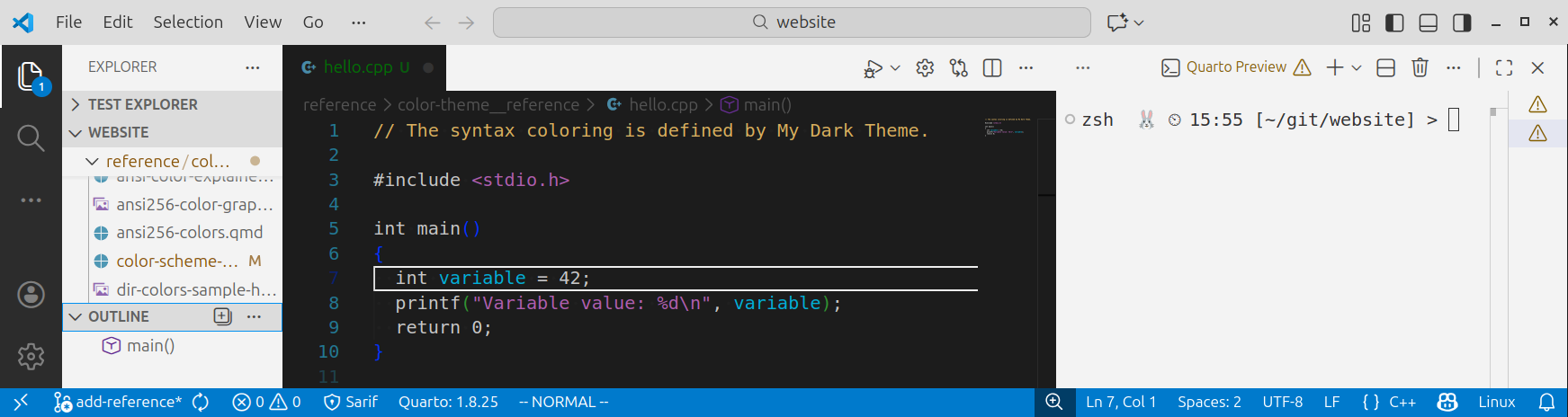
Minimal Color Theme File
This text is included in the minimal color theme file my-dark-theme.json.
{
  "$schema"     : "vscode://schemas/color-theme"

, "colors":
  { "editor.background"                 : "#1c1c1c"
  , "editor.foreground"                 : "#c6c6c6"
  }

, "tokenColors":
  [ { "scope": "comment"
    , "settings": { "foreground": "#d7af5f" }
    }

  , { "scope": "string"
    , "settings": { "foreground": "#af5faf" }
    }
  ]

  // These properties override tokenColors
, "semanticTokenColors":
  { "variable"      : "#00afd7"
  }
}
Load Custom Theme
Load From VS Code
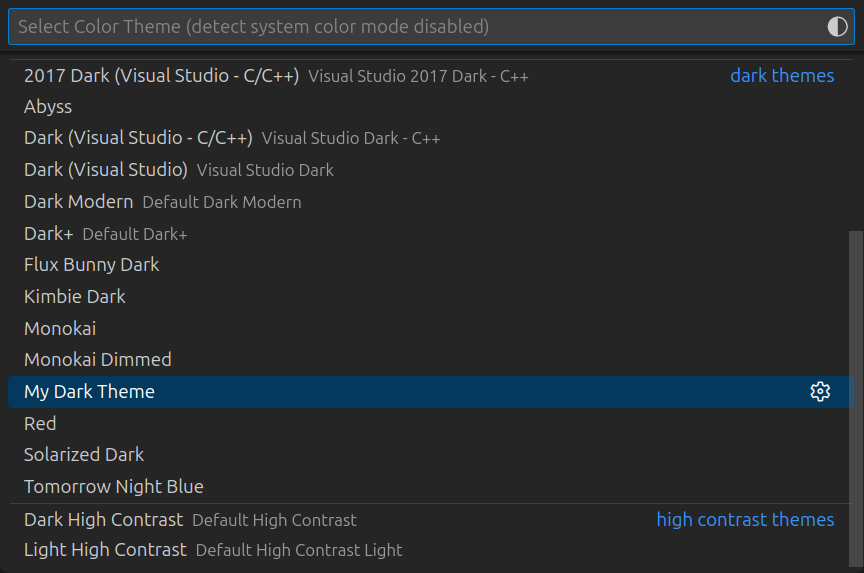
To load the theme, from the search bar type >Color Theme and select Preferences: Color Theme. You can also pull up this search bar with the shortcut Ctrl+Shift+p.

The theme My Dark Theme should now display in the drop down options.
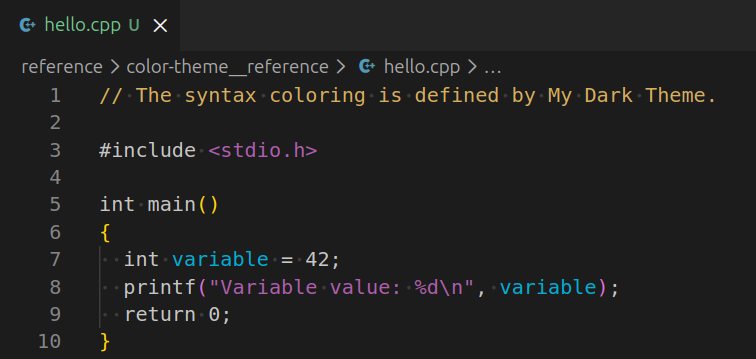
You should now see your defined colors in the editor window.
Add to settings.json
You can also add the color theme to your settings.json file:
{
  "workbench.colorTheme": "My Dark Theme"
}
Existing Theme
You may want to start from an existing theme file. You can use the dark theme I have created here. You can also copy an existing theme from the defaults. Depending on how VS Code was installed, default theme files might be found here:
/snap/code/current/usr/share/code/resources/app/extensions/theme-*/themesAutoformat .json in Vim
If the the json file is not formatted, you can use the following Vim command to autoformat the json file:
:%!python3 -m json.tool