PuTTY Configuration
This page describes how to access a configuration file for a saved PuTTY session. Each saved session is saved in a *.reg file and can be imported or exported through the Windows Registry Editor.
Access Saved Session Configurations
Windows key+r, typeregedit. ClickOK.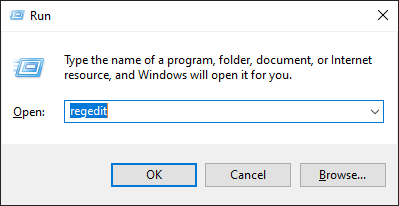
On the left sidebar, navigate to
HKEY_CURRENT_USER/SOFTWARE/SimonTatham/PuTTY/Sessions/<saved-session-name>. By default, there should be a saved session calledDefault%20Settings.Note:
%20corresponds with the ASCII code for space, soDefault%20Settingstranslates toDefault Settings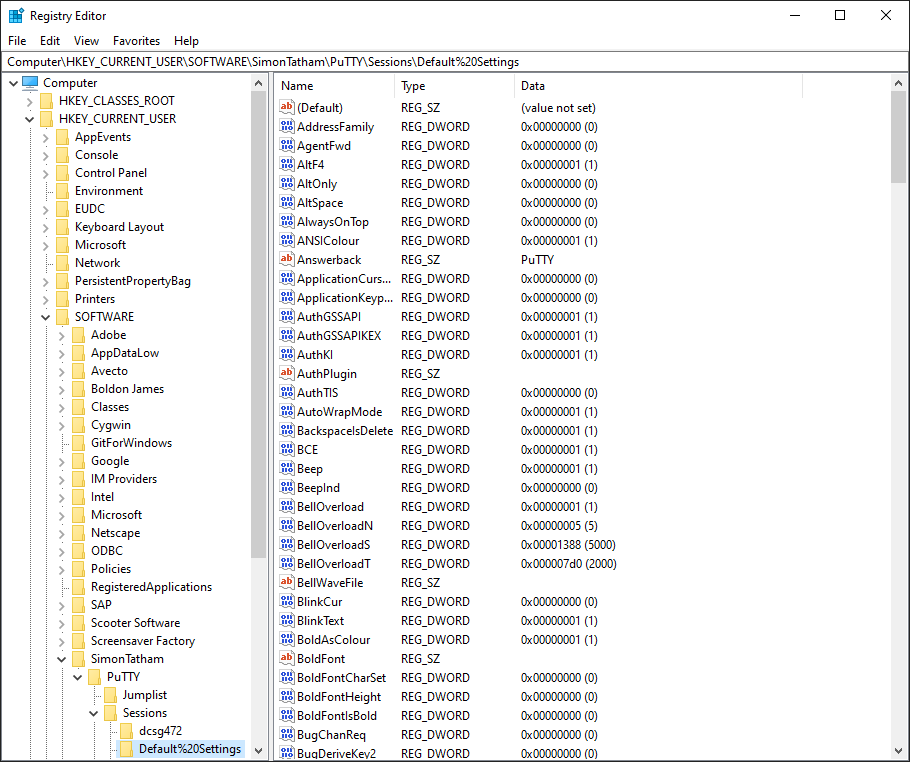
Export Configuration
From the Registry Editor, access the saved configuration you would like to export.
Right-click on the directory corresponding with the saved session to export. Select
Export.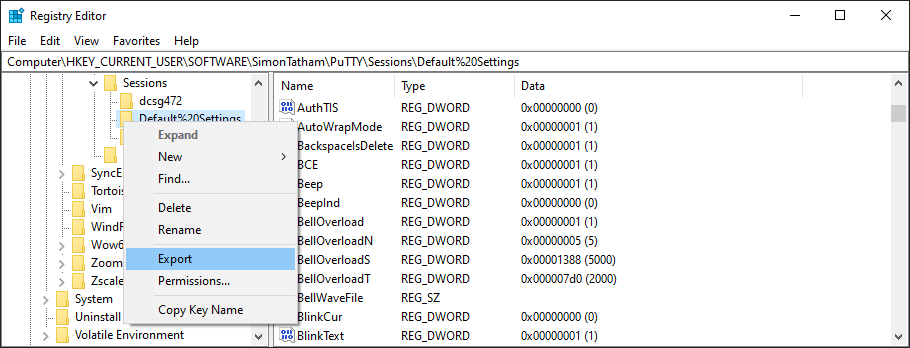
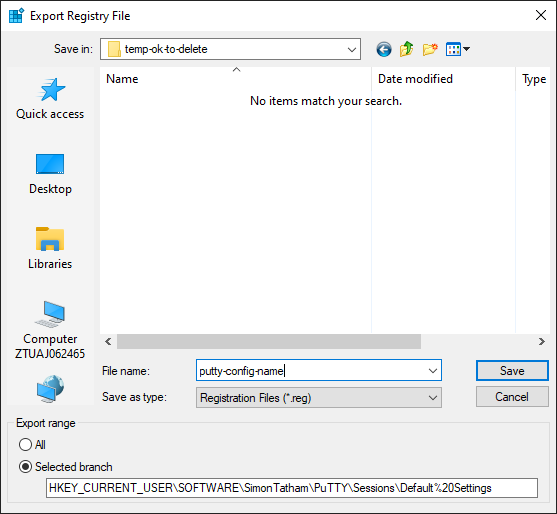
Name the file and save the configuration in your preferred location.
Import Configuration
From the Registry Editor, go to
File > Import.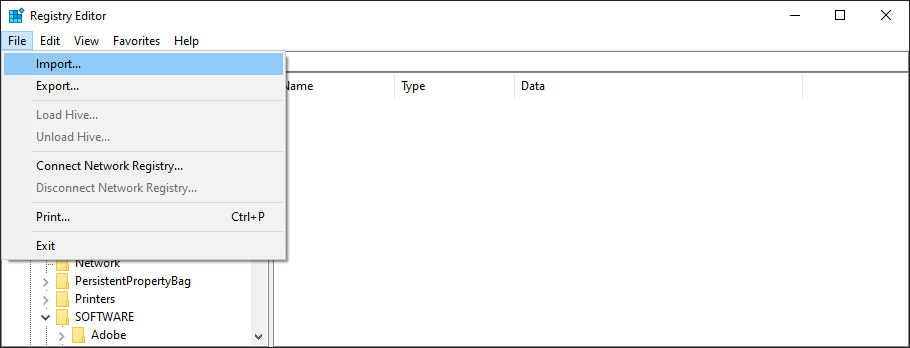
Navigate to the saved configuration
.regfile. ClickOpen.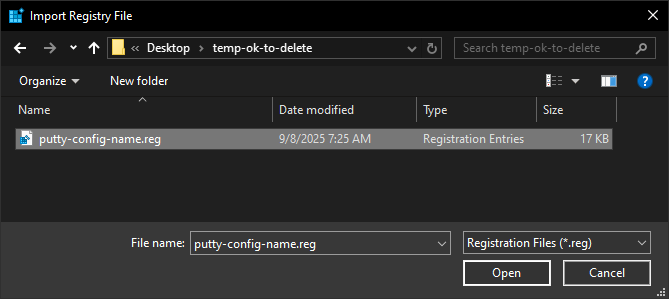
There will be a dialog box confirming that settings were imported. Click
OK.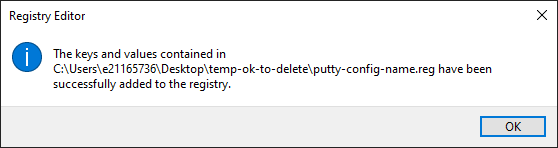
Color Settings
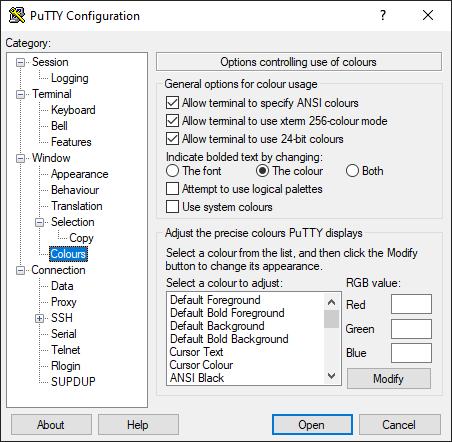
Follow these instructions to customize your PuTTY terminal color scheme.
All Configuration Settings
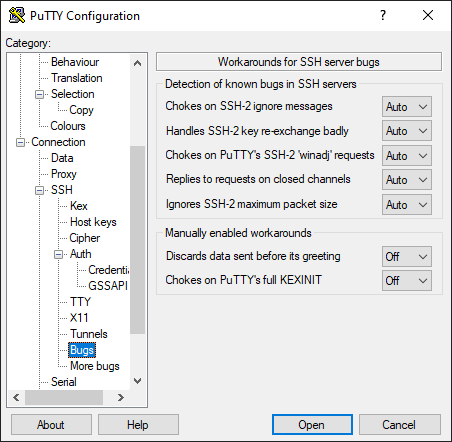
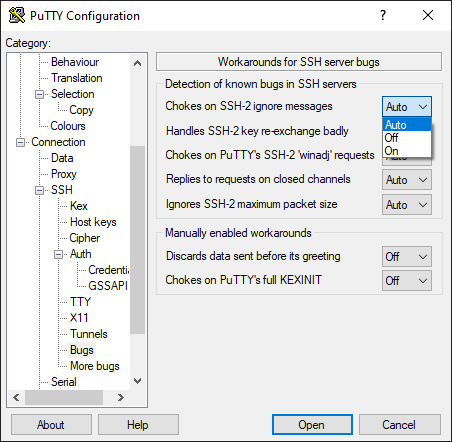
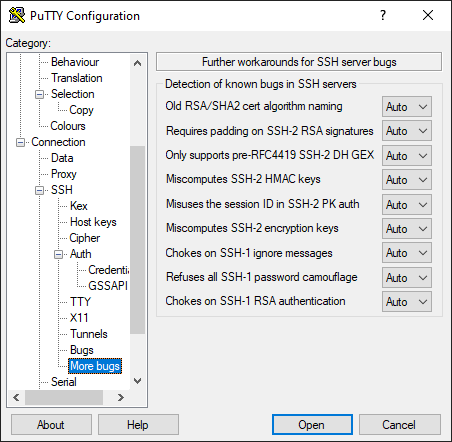
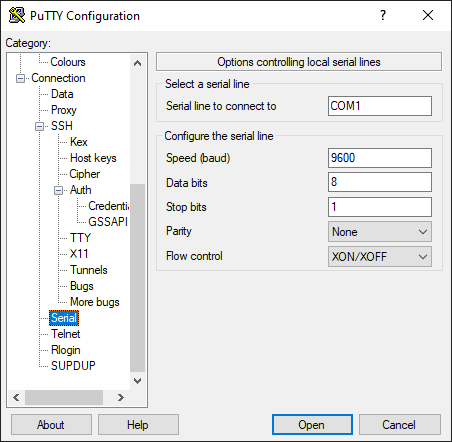
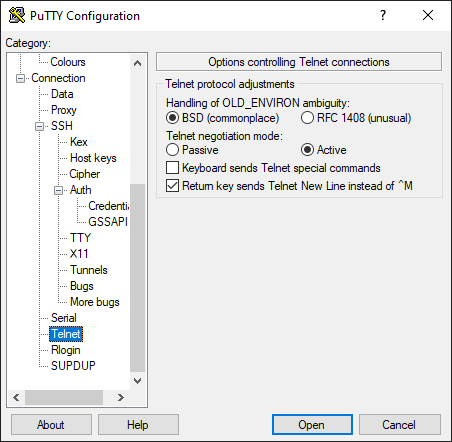
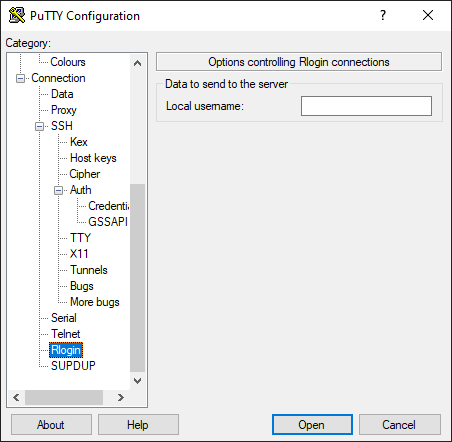
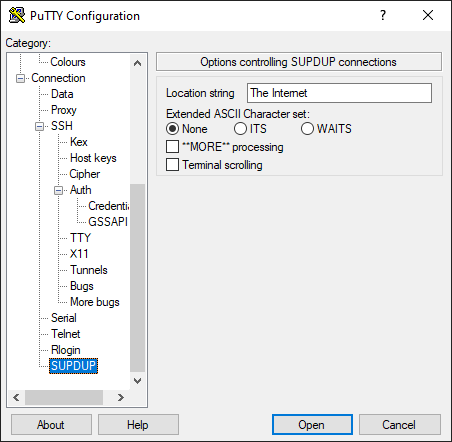
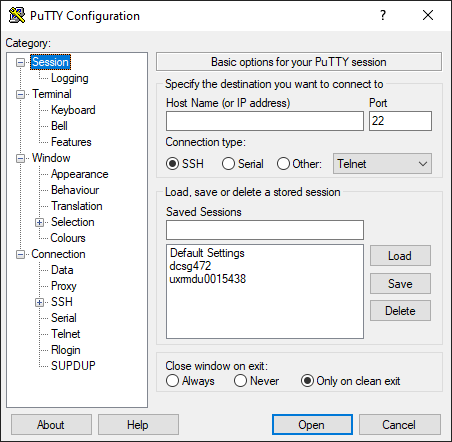
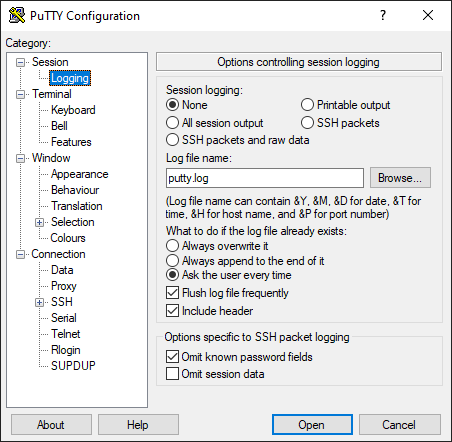
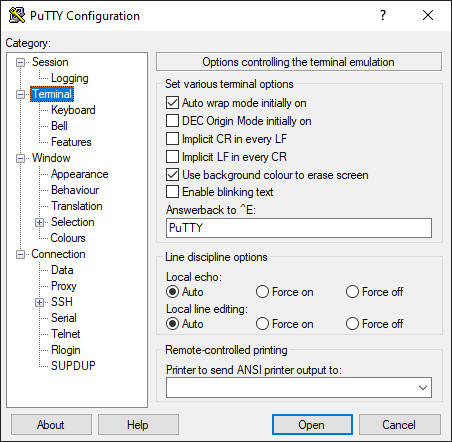
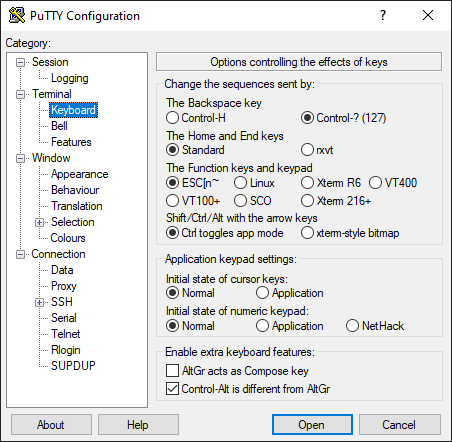
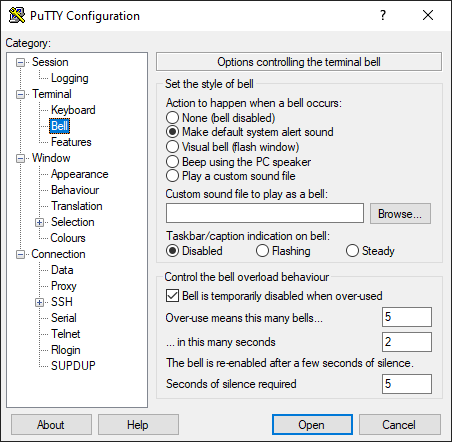
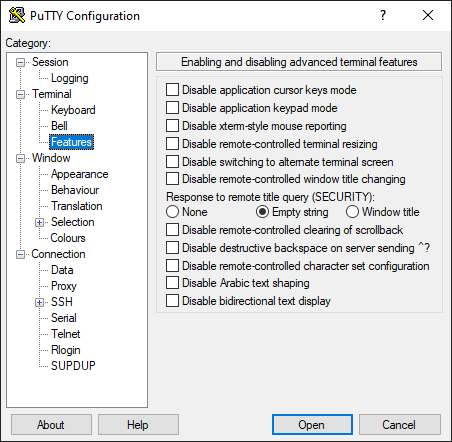
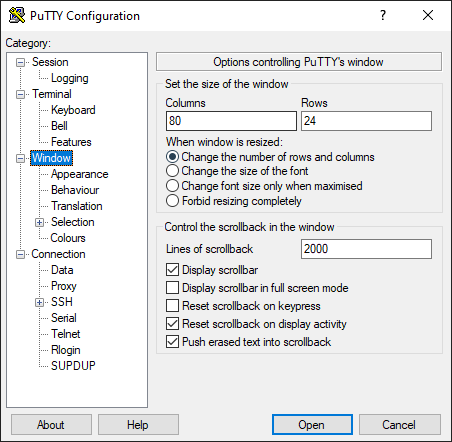
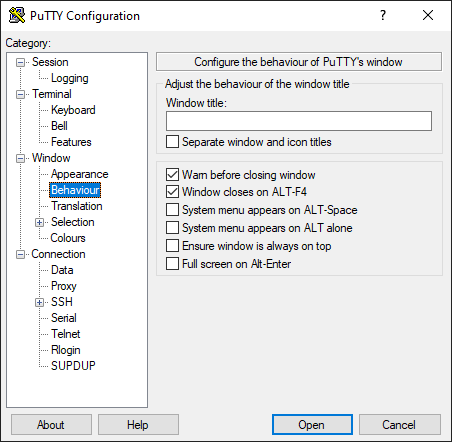
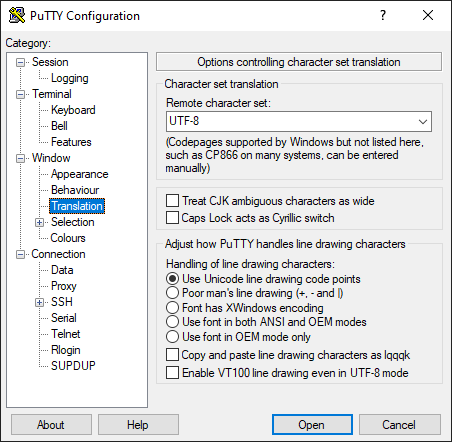
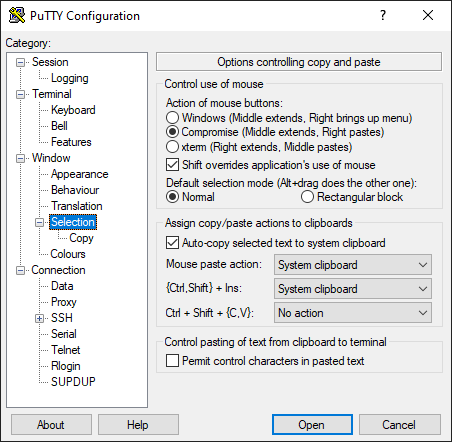
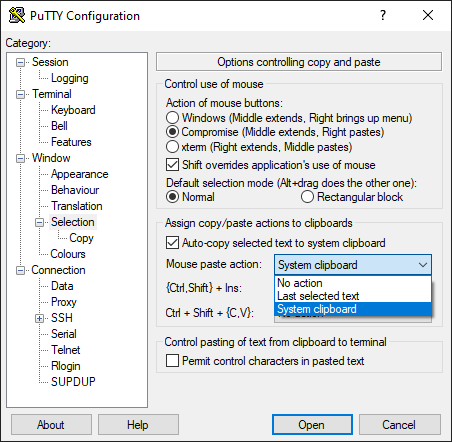
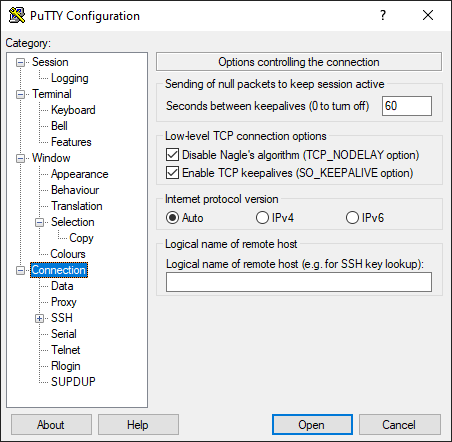
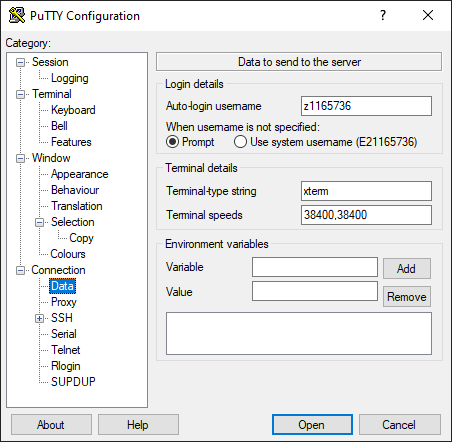
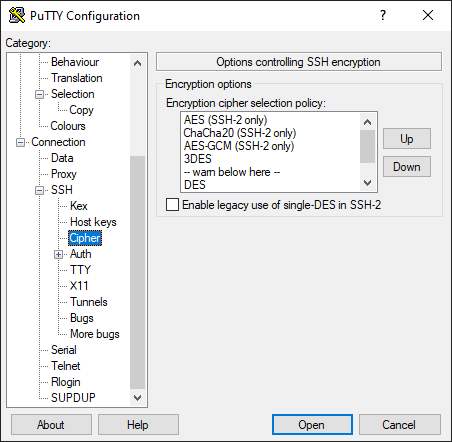
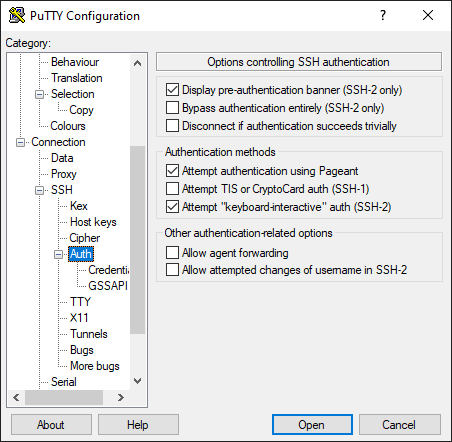
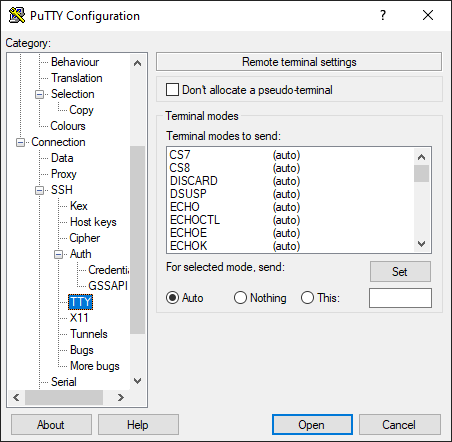
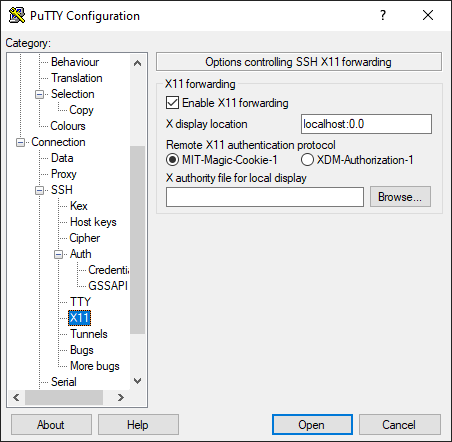
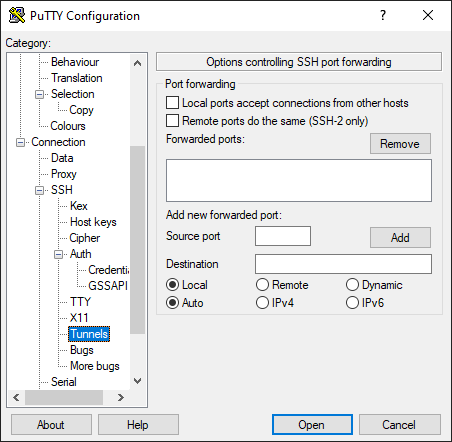
This section contains screenshots of all the configuration settings of a PuTTY window.
Session

Terminal
Window



Connection
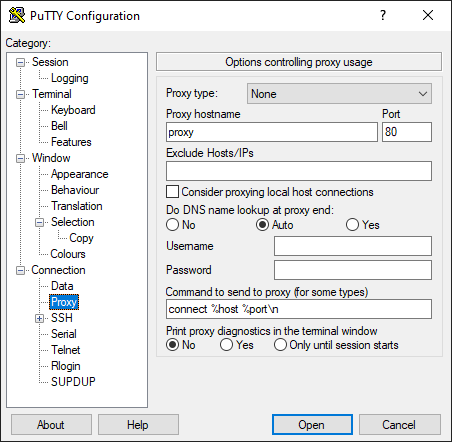
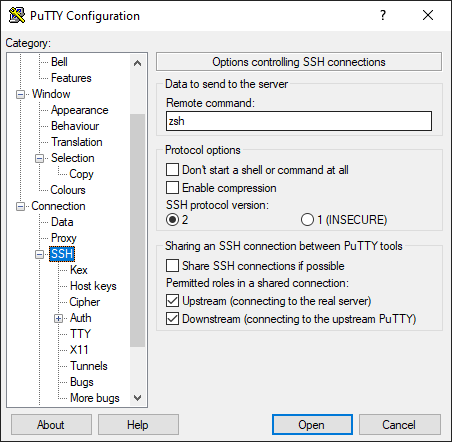
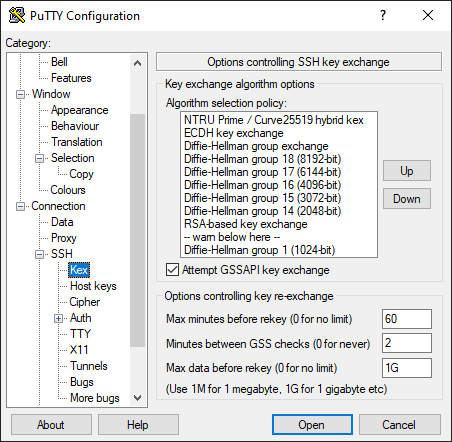
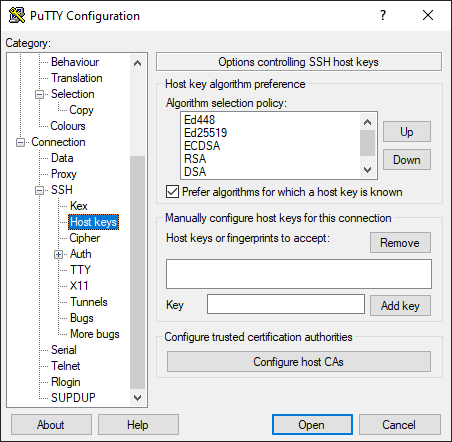
Auth
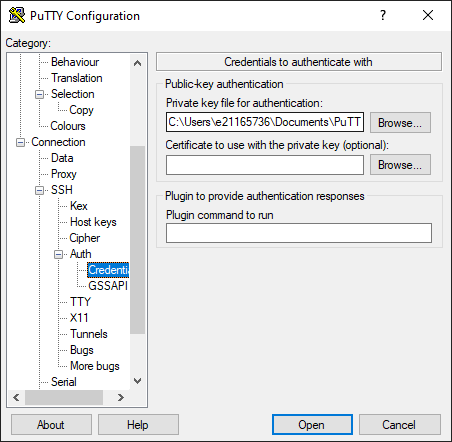
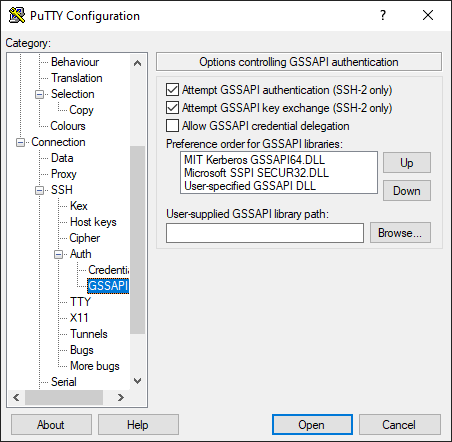
Bugs